
How Can My Kid Make Their Own App? A Parent's Guide (No Experience Needed)
Kids can build real apps with no experience. How it works with Thunkable blocks and with AI vibe coding, first app ideas by age, publishing and staying safe.
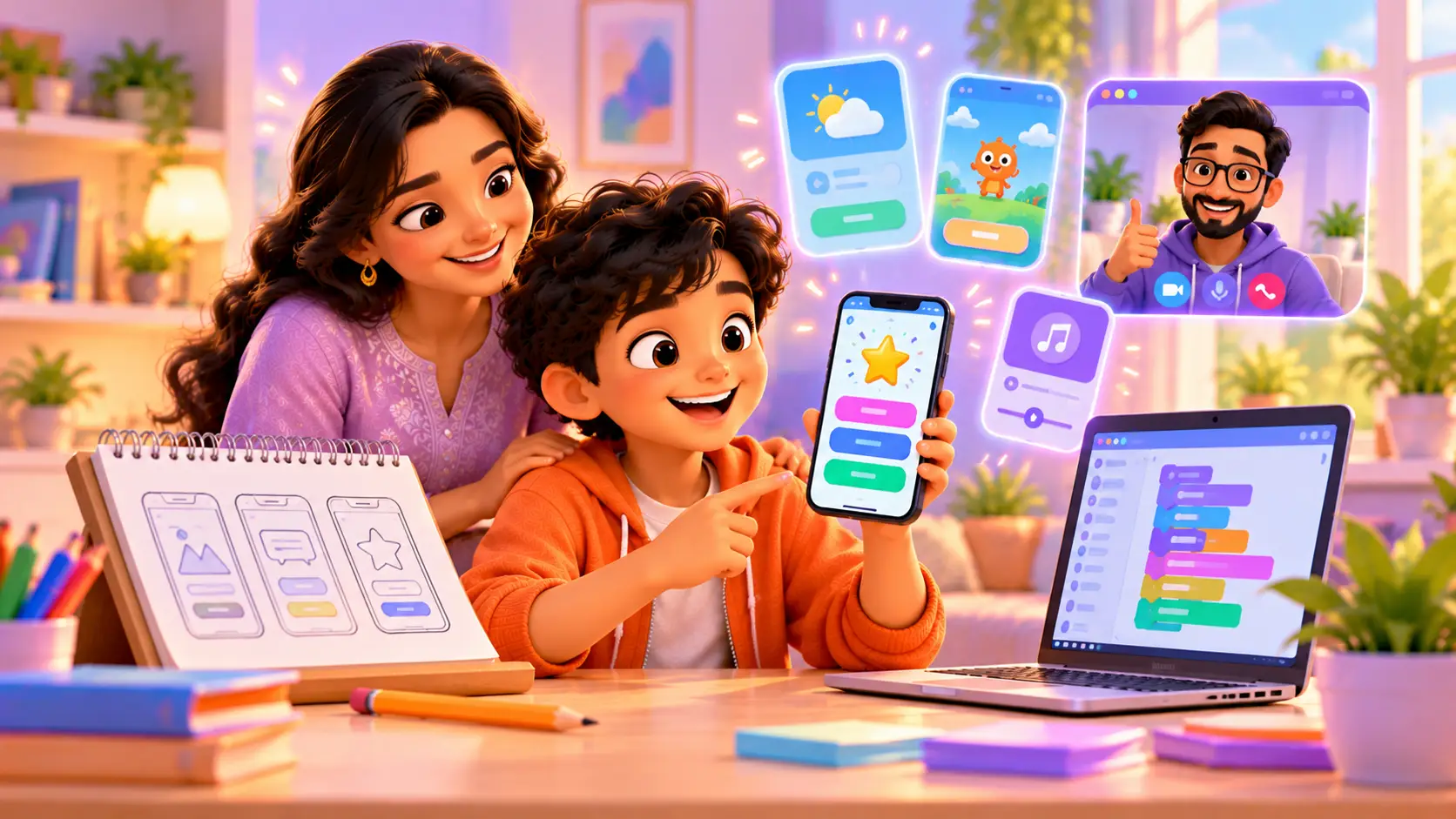
Your kid uses apps every day. Games, video, messaging, school tools. One day they ask: “Can I make my own app?”
The answer is yes, even with no coding experience. This guide explains how kids build real apps, the two main ways to do it, first app ideas by age, how publishing works, and how to keep it safe.
Yes, kids can build real apps
Today’s tools make it possible for kids to build real, working apps:
- Block-based app builders like Thunkable, where kids drag and drop blocks to design screens and add logic
- AI vibe coding, where teens describe an app or website in plain English, build it with AI, then learn to read and improve the code
Both teach the same important skills: planning, logic, testing and fixing problems.
Step 1: from idea to sketch
Every great app starts on paper.
- What problem does it solve? “I always forget my homework.”
- Who is it for? “Me and my friends.”
- What are the screens? Home, add task, task list.
- What happens when you tap each button?
Ask your kid to sketch each screen on paper. This simple step makes building much easier, and it is exactly how real app designers work.
Path 1: building apps with Thunkable (ages 9 to 15)
Thunkable is a drag-and-drop app builder. Kids design screens with buttons, text and images, then snap logic blocks together to decide what happens.
What kids can build:
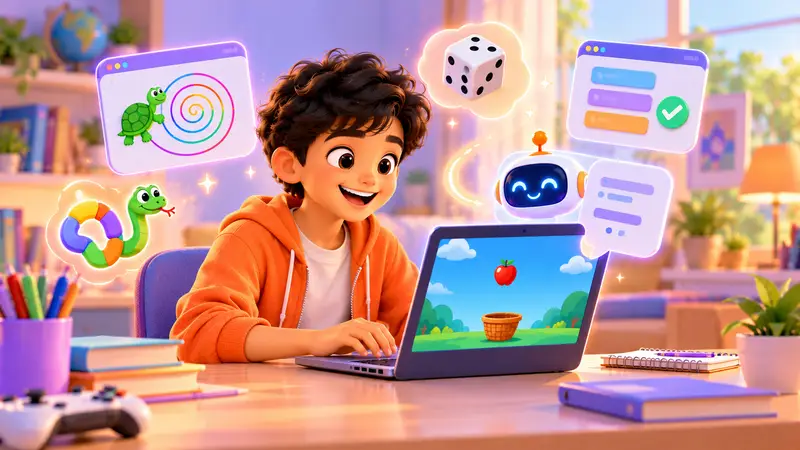
- a quiz app with a score
- a habit tracker that remembers progress
- a translator app
- a Bluetooth remote that controls a robot
How testing works: kids install Thunkable’s free testing app on a phone or tablet, and the app they are building appears live on the device. Every change shows up straight away.
What they learn:
- app design (screens, buttons and layout)
- logic with blocks (if this, then that)
- using phone sensors and saving data
- testing with real users, like family and friends
This is exactly what kids do in our App Development course for ages 9 to 15.
Path 2: vibe coding apps with AI (ages 11 to 18)
Vibe coding means describing what you want in plain English and building it with AI. Teens can build web apps, like a quiz, a planner or a small game, that run on any phone through a link.
How it works:
- Describe the app clearly: “Make a homework planner with a list of tasks, a due date for each, and a button to mark them done.”
- Let AI build a first version using an AI coding tool such as Google Antigravity, or an editor like VS Code with an AI assistant such as Claude.
- Test it on a laptop and a phone.
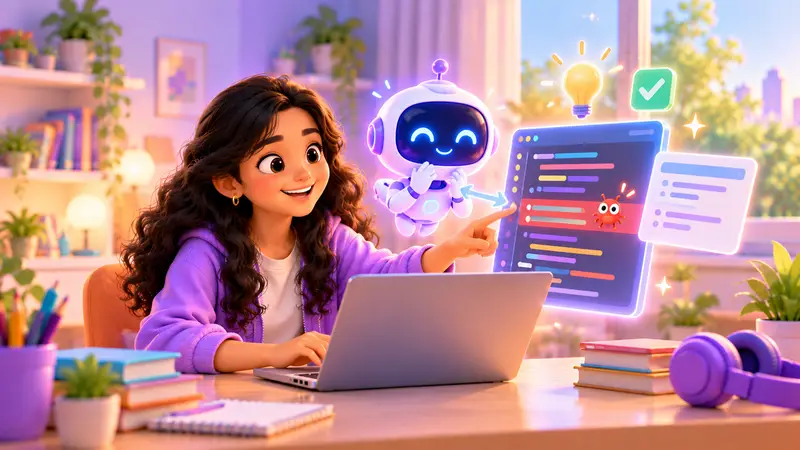
- Read and fix the code. AI often makes small mistakes, and kids learn HTML, CSS and JavaScript by fixing them.
- Publish it with free web hosting, so family can open it with a link.
Safety first: AI coding tools have age rules, so kids should not sign up for them on their own. In our classes, AI building sessions are led by a trainer, with parents' permission, and kids are taught to understand and check every line, not just paste it.
Learn more in What is vibe coding? Can kids build websites with AI?
Thunkable vs AI vibe coding
| Thunkable | AI vibe coding | |
|---|---|---|
| Best age | 9 to 15 | 11 to 18 |
| How it works | Drag-and-drop blocks | Describe in English, then check the code |
| Builds | Mobile apps for phones and tablets | Web apps and websites |
| Code learned | Logic with blocks | HTML, CSS and JavaScript |
| Best for | First-time app makers | Teens with big ideas |
| Our course | App Development | Vibe Coder |
Thunkable vs MIT App Inventor
These are the two best-known block-based app builders for kids. Both are good first tools.
| Thunkable | MIT App Inventor | |
|---|---|---|
| How it works | Drag-and-drop design and blocks, in a browser | Drag-and-drop design and blocks, in a browser |
| Look of the apps | Modern, polished screens | Simpler screens |
| Testing | Live on your phone with the Thunkable app | Live on your phone with the companion app |
| Best for | Kids who care about design and want apps that look professional | Learning the basics with lots of free tutorials |
The skills transfer from one to the other, because both use the same ideas: screens, components and events. We use Thunkable in our App Development course because kids love how real their finished apps look.
First app ideas by age
Ages 9 to 11:
- a “guess the animal” quiz
- a dice roller for board games
- a family birthday reminder
- a drawing app with colour buttons
Ages 12 to 14:
- a homework planner
- a water-drinking reminder
- a times-table trainer with a high score
- a remote control for a robot car
Ages 15 and up:
- a club or class website with sign-up
- a budget tracker
- an AI-powered study helper (trainer-led)
- an app that solves a problem in their school or community
What a first app-building class looks like
- Share the idea. The trainer asks what app your kid wants to make and why.
- Sketch the screens together, on paper or on screen.
- Build the first screen with buttons, text and pictures.
- Add the logic: what happens when each button is tapped.
- Test it on a phone and fix anything that does not work.
- Plan version 2: one new feature for next time.
By the end of the first class, most kids have a simple working screen on their own phone. That moment is usually when they get hooked.
Common problems, and how kids fix them
| Problem | How kids learn to fix it |
|---|---|
| A button does nothing | Check the block attached to that button |
| The app forgets data when closed | Learn to save data so it stays |
| The layout looks wrong on a phone | Adjust sizes so it fits different screens |
| The AI-built web app shows an error | Read the error message and fix the code it points to |
| Friends find the app confusing | Change labels and layout after testing with real users |
Every fix teaches a real skill that professional app developers use every day.
Can a kid publish an app?
On app stores: Google Play and Apple developer accounts must be owned by an adult, and may have fees. So if your kid’s app is ready for the store, a parent owns the account and publishes it, and the kid can still be credited as the creator.
Without app stores: kids can share their app through testing tools and links with family and friends, or publish a web app with a simple link. For most kids, that is the most exciting part: seeing friends use something they made.
Keeping kids’ apps safe and private
- Do not collect personal information like full names, addresses, school names or photos.
- Do not add chat between strangers to apps for kids.
- Keep API keys and passwords private, never inside shared projects.
- Test with family first, before sharing widely.
- A parent approves anything published publicly.
What kids learn beyond the app itself
Building an app teaches much more than app building. Kids learn to plan before they start, to think about the person using it, to test and fix problems patiently, and to finish what they begin. These are the same habits that help with school projects, and with any career they choose later.
How parents can help
- Be the first user. Test the app and give honest, kind feedback.
- Ask “what problem does it solve?” It turns a toy into a product.
- Celebrate version 1. Real apps improve over many versions.
- Encourage finishing. A small finished app teaches more than a big unfinished one.
Build your kid’s first app with a trainer
In a free demo class, your kid can share their app idea and start building it with a trainer. Classes are live and 1-on-1, online or at our centre in Bellandur, Bangalore. All your kid needs is a laptop, and a phone or tablet to test on.




 Chat on WhatsApp