
15 Python Projects for Kids, Sorted by Age (With Code to Try)
15 fun Python projects for kids, sorted by age, with code to try: games, quizzes, a chatbot and 5 AI projects using the Gemini API.
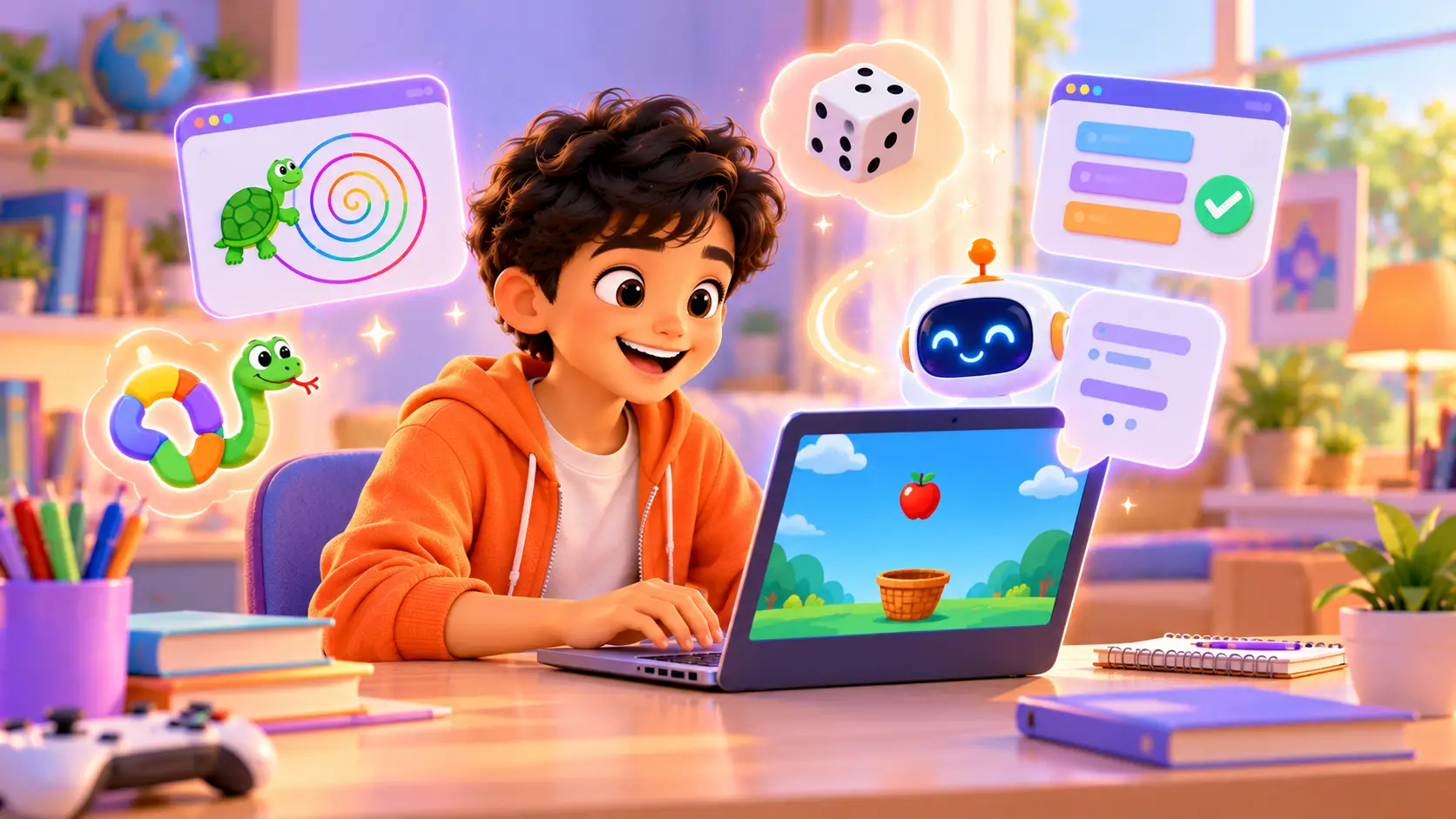
Python is one of the best first “real” languages for kids. It reads almost like English, and it is used by professionals everywhere, from games to artificial intelligence.
Here are 15 Python projects sorted by age, each with real code to try. The last five are AI projects that use Google’s Gemini API, with a parent’s permission. Every project lists what it teaches and a challenge to make it your own.
Before you start: setting up Python
- Install Python from python.org.
- Install Thonny (simple, made for beginners) or VS Code (for older kids).
- Create a new file, type the code, and press Run.
Mistakes are normal. Red error messages are clues, not failures. Read them, fix one thing, and run again.
Ages 9 to 11: first games and stories
1. Friendly greeter
The computer asks your name and age, and answers back. It is a tiny program, but it is the first time your kid’s computer talks to them, and it teaches the two most important ideas in coding: taking input and remembering it in a variable.
name = input("What is your name? ")
age = int(input("How old are you? "))
print("Hi", name + "!")
print("Next year you will be", age + 1)
Teaches: input, variables, numbers vs text Make it yours: work out how many days old you are (age × 365).
2. Guess the number
The computer picks a secret number. Can you find it? After each guess it says “Too low!” or “Too high!”, so your kid uses logic to close in on the answer. Kids love playing it against siblings and parents.
import random

secret = random.randint(1, 20)
guess = 0

while guess != secret:
    guess = int(input("Guess a number from 1 to 20: "))
    if guess < secret:
        print("Too low!")
    elif guess > secret:
        print("Too high!")

print("You got it!")
Teaches: random numbers, loops, if statements Make it yours: count the guesses and print the score at the end.
3. Turtle spiral art
Draw colourful patterns with a turtle. A little arrow moves around the screen leaving a coloured line behind it, and a short loop turns into a beautiful spiral. Changing one number creates a completely different pattern, which makes kids want to experiment.
import turtle

t = turtle.Turtle()
t.speed(0)
colours = ["red", "orange", "purple", "blue"]

for i in range(100):
    t.pencolor(colours[i % 4])
    t.forward(i * 3)
    t.left(91)

turtle.done()
Teaches: loops, lists, angles Make it yours: change 91 to 120 or 144 and see what happens.
4. Rock, paper, scissors
Play against the computer. You type your choice, the computer picks at random, and the program decides who wins. Writing the rules teaches kids how computers make decisions with if, elif and else.
import random

choices = ["rock", "paper", "scissors"]
you = input("rock, paper or scissors? ").lower()
computer = random.choice(choices)
print("Computer chose", computer)

if you == computer:
    print("It's a draw!")
elif (you == "rock" and computer == "scissors") or \
     (you == "paper" and computer == "rock") or \
     (you == "scissors" and computer == "paper"):
    print("You win!")
else:
    print("Computer wins!")
Teaches: lists, comparing text, and/or logic Make it yours: play best of five and keep score.
5. Times-table quiz
Practise maths with a quiz that keeps score. The computer asks five random times-table questions, checks each answer and gives a score at the end. Many kids find it more fun than practising on paper, because they built the quiz themselves.
import random

score = 0
for question in range(5):
    a = random.randint(2, 12)
    b = random.randint(2, 12)
    answer = int(input(f"What is {a} x {b}? "))
    if answer == a * b:
        print("Correct!")
        score += 1
    else:
        print("Not quite, it's", a * b)

print("You scored", score, "out of 5")
Teaches: loops, f-strings, keeping score Make it yours: add a timer, or let the player choose a times table.
Ages 12 to 14: apps, files and a chatbot
6. Silly story maker
Fill in the blanks and get a funny story. The program asks for an animal, a food and a place, then drops them into a story. The sillier the words, the funnier the result.
animal = input("An animal: ")
food = input("A food: ")
place = input("A place: ")

print(f"One day a {animal} walked into {place}.")
print(f"It ordered 100 plates of {food}!")
print(f"Everyone in {place} still talks about it.")
Teaches: text formatting, building strings Make it yours: pick a random story from three templates.
7. Password strength checker
Check how strong a password is (never type a real one). The program looks for length, numbers, capital letters and symbols, then gives a rating from “Very weak” to “Very strong”. It is a fun way to talk about online safety at home too.
password = input("Type a practice password: ")
score = 0

if len(password) >= 8:
    score += 1
if any(c.isdigit() for c in password):
    score += 1
if any(c.isupper() for c in password):
    score += 1
if any(not c.isalnum() for c in password):
    score += 1

print(["Very weak", "Weak", "OK", "Strong", "Very strong"][score])
Teaches: string methods, conditions, lists Make it yours: print a tip for each missing rule.
8. To-do list that remembers
A to-do list saved to a file, so it is still there tomorrow. Most beginner programs forget everything when they close. This one saves your tasks, which is how real apps remember your data.
tasks = []
try:
    with open("todo.txt") as f:
        tasks = [line.strip() for line in f]
except FileNotFoundError:
    pass

new_task = input("Add a task (or press Enter to skip): ")
if new_task:
    tasks.append(new_task)

with open("todo.txt", "w") as f:
    f.write("\n".join(tasks))

for number, task in enumerate(tasks, start=1):
    print(number, task)
Teaches: files, lists, handling errors Make it yours: add a way to delete a finished task.
9. Rule-based chatbot
A simple chatbot that answers using rules you write. Type “hello” or “joke” and RoboBot replies. It only knows what your kid teaches it, which is a great way to understand how chatbots work before using real AI.
replies = {
    "hello": "Hi there! I'm RoboBot.",
    "how are you": "I'm running at full power!",
    "joke": "Why did the robot go on holiday? It needed to recharge!",
}

while True:
    message = input("You: ").lower()
    if message == "bye":
        print("RoboBot: Bye! See you soon.")
        break
    reply = "I don't know that yet. Teach me!"
    for key in replies:
        if key in message:
            reply = replies[key]
    print("RoboBot:", reply)
Teaches: dictionaries, loops, matching text Make it yours: add ten more replies about your favourite topic.
10. Catch-the-falling-fruit game
Using the Pygame library, kids build a real game with a basket, falling fruit and a score. It is longer than the other projects, so it is a great one to build step by step with a trainer.
Teaches: game loops, movement, collision, keyboard input
Ages 13 and up: AI projects with the Gemini API
These five projects connect Python to Google’s Gemini AI.
With a parent's permission. Google's API terms have age requirements, so a parent creates and keeps the API key and sets it up on the computer. Never share the key, never put it in code you post online, and never send personal details (full name, address, school, photos) to an AI. In our classes, AI projects are trainer-led, with parents' permission.
Setup (parent): create a key in Google AI Studio, install the library with pip install google-genai, and save the key as an environment variable called GEMINI_API_KEY. The library reads it from there, so it never appears in the code. The examples use gemini-3.8-flash. Model names change over time, so if it stops working, use the current one listed in Google’s documentation.
11. Ask Gemini a question
The first AI program: ask a question, get an answer. In just a few lines, your kid’s program sends a question to Google’s Gemini AI and prints the reply. It is the moment kids realise they can build with AI, not just use it.
from google import genai

client = genai.Client()  # reads GEMINI_API_KEY

question = input("Ask the AI anything: ")
response = client.models.generate_content(
    model="gemini-3.8-flash",
    contents=question,
)
print(response.text)
Teaches: using a library, calling an API, reading the reply
12. AI chatbot with a personality
Give your chatbot a character, and it remembers the conversation. Your kid decides its personality, like a friendly robot who loves space, and the AI stays in character as they chat.
from google import genai
from google.genai import types

client = genai.Client()
chat = client.chats.create(
    model="gemini-3.8-flash",
    config=types.GenerateContentConfig(
        system_instruction="You are Robo, a friendly robot who loves space. "
                           "Keep answers short and suitable for kids."
    ),
)

while True:
    message = input("You: ")
    if message.lower() == "bye":
        break
    print("Robo:", chat.send_message(message).text)
Teaches: system instructions, conversations, loops Compare with project 9: your rule-based bot only knows what you wrote. The AI bot can answer anything, but it can also be wrong, so always check.
13. AI quiz maker
The AI writes quiz questions on any topic. Type “planets” or “cricket” and the AI creates three multiple-choice questions. Kids learn that the clearer the prompt, the better the result.
from google import genai

client = genai.Client()
topic = input("Quiz topic: ")
prompt = (f"Write 3 multiple-choice questions about {topic} for a 12 year old. "
          "Give 4 options each and mark the correct answer.")

response = client.models.generate_content(model="gemini-3.8-flash", contents=prompt)
print(response.text)
Teaches: writing clear prompts, f-strings Make it yours: ask the AI to reply in a fixed format, then turn it into a playable quiz.
14. AI story builder
You write a line, the AI adds the next, and you take turns. Together, your kid and the AI build a short adventure story, five lines each. It mixes creative writing with coding.
from google import genai

client = genai.Client()
chat = client.chats.create(model="gemini-3.8-flash")
chat.send_message("Let's write a short, kind adventure story together. "
                  "I write a line, you add one line. Wait for me.")

for turn in range(5):
    line = input("Your line: ")
    print("AI:", chat.send_message(line).text)
Teaches: turn-taking loops, creative prompts
15. AI homework helper (hints, not answers)
An AI that explains and gives hints, so you still do the thinking. The instructions tell the AI never to give the final answer, only one small hint at a time. It shows kids how to use AI responsibly for school work.
from google import genai
from google.genai import types

client = genai.Client()
helper = client.chats.create(
    model="gemini-3.8-flash",
    config=types.GenerateContentConfig(
        system_instruction="You are a patient tutor. Never give the final answer. "
                           "Give one small hint at a time and ask a question back."
    ),
)

problem = input("What are you stuck on? ")
print(helper.send_message(problem).text)
Teaches: using AI responsibly, controlling behaviour with instructions
Which projects should your kid start with?
- New to Python, ages 9 to 11: start with projects 1 and 2, then try 3 and 5.
- Already done some Scratch: jump to 4 and 6, then the chatbot in project 9.
- Ages 13 and up who know the basics: finish project 9, then move to the AI projects 11 to 15 with a parent’s help.
One finished project is worth more than five half-done ones. Encourage your kid to complete the “make it yours” challenge before moving on.
How to get unstuck
- Read the last line of the error. It usually says what went wrong.
- Check spelling and spaces. Python cares about indentation.
- Print things. Add
print()to see what your variables hold. - Change one thing at a time, then run again.
What to learn next
Kids who enjoy these projects can build bigger games with Pygame, move to Raspberry Pi robotics where Python controls cameras and motors, or learn to build websites with AI in Vibe Coder. New to Python? Read Scratch vs Python and Is coding still worth learning now that AI can write code?.
Build the next project with a trainer
In our Python Programming course (ages 9 to 18), kids build games, a quiz app, a chatbot and small AI projects, live and 1-on-1 with a trainer. In a free demo class, your kid writes their first Python program.


 Chat on WhatsApp