

10 Fun Arduino Projects Kids Can Build at Home
From a blinking LED to a robot that avoids walls: 10 fun Arduino projects for kids, sorted from easy to advanced, with what each one teaches.
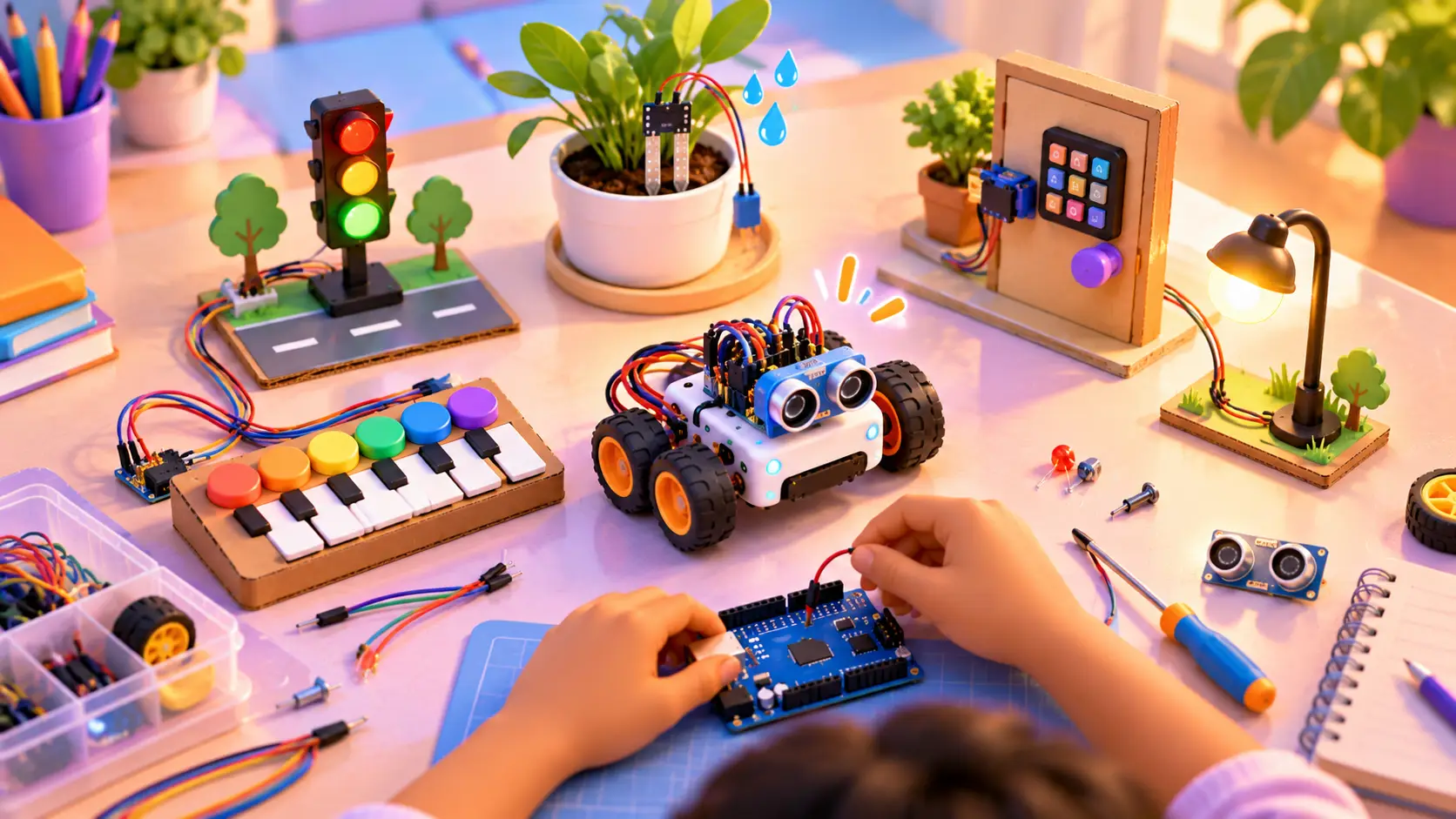
Arduino is one of the best ways for kids to learn real electronics and coding. With a small board, a few parts and a laptop, kids can build gadgets and robots that sense, react and move, just like real machines.
Here are 10 fun Arduino projects, sorted from easy to advanced, with what each one teaches and the parts it needs. Every one of them is part of our Arduino Robotics course. We have also included a real first program, so you can see what Arduino code looks like.
What is Arduino, in simple words?
An Arduino is a small board with a tiny computer chip on it, called a microcontroller. You write a program on a laptop, send it to the board with a USB cable, and the board follows your instructions: turn on a light, read a sensor, spin a motor.
Arduino is the “brain” behind many real gadgets, which is why it is such a great way for kids to understand how machines work. If you are still choosing a board, read our guide: Micro:bit vs Arduino vs Raspberry Pi.
Before you start: what you need
- an Arduino board and a USB cable
- a breadboard, which lets kids build circuits without soldering
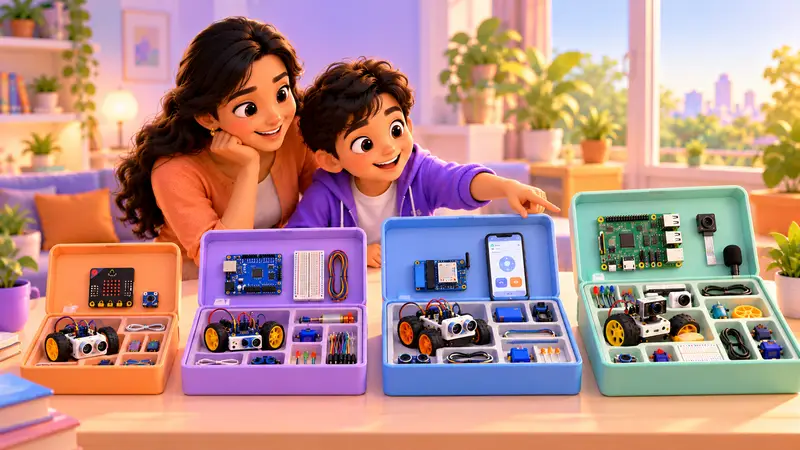
- a kit of parts: LEDs, resistors, buttons, a buzzer, motors, sensors and jumper wires
- a laptop to write and upload the code
Get the complete Arduino kit. Our Arduino course uses 120+ electronic components across 52 projects. Buy the kit from us and we ship it to your home, anywhere in the world. Ask about the Arduino kit on WhatsApp.
The 10 projects at a glance
| # | Project | Level | Key parts |
|---|---|---|---|
| 1 | LED blink | Easy | LED, resistor |
| 2 | LED traffic lights | Easy | 3 LEDs, resistors |
| 3 | Push-button buzzer piano | Easy | Buttons, buzzer |
| 4 | Automatic street lights | Medium | Light sensor, LEDs |
| 5 | Light-following robot | Medium | Light sensors, motors, robot chassis |
| 6 | Math quiz game on an LCD | Medium | LCD screen, buttons |
| 7 | Obstacle-avoiding robot | Advanced | Ultrasonic sensor, motors, chassis |
| 8 | Smart parking system | Advanced | Sensors, LEDs or display |
| 9 | Automatic plant watering | Advanced | Soil-moisture sensor, water pump |
| 10 | Password door lock | Advanced | Keypad, servo motor |
Easy projects (first steps)
1. LED blink
The classic first project. Kids make a light turn on and off. It sounds simple, but it teaches the most important idea in robotics: code controls the real world.
Here is the whole program. Most Arduino boards have a small light built in, so this works even before any wiring:
// Blink: turn the light on and off, forever
void setup() {
  pinMode(LED_BUILTIN, OUTPUT);   // the light is an output
}

void loop() {
  digitalWrite(LED_BUILTIN, HIGH); // light on
  delay(1000);                     // wait 1 second
  digitalWrite(LED_BUILTIN, LOW);  // light off
  delay(1000);                     // wait 1 second
}
setup() runs once when the board starts. loop() runs again and again, forever. Change 1000 to 200 and the light blinks fast. That moment, when a kid changes a number and the real world changes, is when robotics clicks.
Teaches: how a program runs step by step, and timing.
2. LED traffic lights
Red, yellow, green, just like a real traffic signal. Kids control three lights in the right order and timing.
Teaches: sequences and delays.
Try this next: add a button for a pedestrian crossing that turns the light red.
3. Push-button buzzer piano
Each button plays a different note. Kids make music with their own circuit.
Teaches: reading inputs (buttons) and making outputs (sound).
Try this next: program the buttons to play a song your family knows.
Medium projects (building confidence)
4. Automatic street lights
Lights that switch on by themselves when it gets dark, using a light sensor.
Teaches: sensors, and “if this, then that” decisions.
Real-world link: many real street lights and phone screens adjust to light in a similar way.
5. Light-following robot
A robot car that follows a torch beam. Kids build their first moving robot, with two light sensors on the front: when one side sees more light, the robot turns towards it. Shine a torch on the floor and the robot chases it around the room, which never stops being fun.
Teaches: motors, sensors and how robots react to their surroundings.
6. Math quiz game on an LCD screen
A mini game console that asks maths questions on a small screen.
Teaches: displays, user input and game logic. It also makes maths practice fun, which many parents love.
Advanced projects (real engineering)
7. Obstacle-avoiding robot
A robot car with an ultrasonic sensor that “sees” walls and turns away by itself. This is usually the project that makes kids fall in love with robotics.
Teaches: distance sensors, decision making and autonomous robots.
Real-world link: cars with parking sensors use a similar idea to warn drivers.
8. Smart parking system
A sensor detects cars and shows which parking spots are free, like a mini version of a real mall car park.
Teaches: combining sensors and outputs into a complete system.
9. Automatic plant watering system
A soil-moisture sensor checks the plant and turns on water only when it is dry. Kids decide how dry is “too dry” by testing the sensor in wet and dry soil, then a small pump waters the plant automatically. It is a project the whole family can use, especially during holidays.
Teaches: real-world automation and solving everyday problems.
10. Password door lock
Enter the right code on a keypad and the door unlocks. Get it wrong and it stays shut.
Teaches: keypads, security logic and storing information.
When a project does not work (and why that is good)
Every builder, from a 10-year-old to a professional engineer, has projects that do not work the first time. Here are the most common problems kids meet, and what they learn by fixing them:
| Problem | Usual cause | What kids learn |
|---|---|---|
| The LED does not light up | LED placed the wrong way round, or a loose wire | LEDs have a + and − side; check connections carefully |
| The code will not upload | Wrong board or port selected, or a typing mistake | Reading error messages and checking settings |
| The robot spins in circles | One motor wired the other way | How motor direction works |
| The sensor gives strange numbers | A loose wire or wrong pin in the code | Testing one part at a time |
A good trainer does not fix the problem for the kid. They ask questions like “What did you change last?” until the kid finds it. That is how kids build real problem-solving confidence.
Safety tips for building at home
- Use only low power: a laptop USB port or small batteries.
- Never connect anything to a wall socket.
- Unplug before changing wires.
- Keep small parts away from younger siblings and pets.
- Handle sensors and boards gently, and hold them by the edges.
How kids progress in our Arduino course
Our Arduino Robotics course has 75 live classes and 52 hands-on projects across three levels:
- Learner: LEDs, buttons, sound and first circuits
- Tinkerer: motors, robot cars, servos, joysticks and LCD screens
- Innovator: sensors, smart systems, games, IoT and AI, up to projects like a LiveCam delivery robot and an AI home automation system
Kids get a certificate to download as they finish each level, and every project is saved to their personal dashboard portfolio.
“Thanks to RoboticSchools for their brilliant guidance and support that helped my son build the confidence and capability to participate and win in a recent robotics competition.”
Abhishek Rajan, parent (Google review)
Tips for parents
- Let them struggle a little. Fixing a circuit that does not work is where the real learning happens.
- Celebrate every project. Ask your kid to show you how it works, and to explain one line of the code.
- Keep the kit organised. A box with small sections stops parts going missing.
- Ask “what if?” “What if the light blinked faster?” “What if the robot turned left instead?” Small changes build big confidence.
- Learn with a trainer. A live trainer helps kids understand why something works, not just copy steps.
Curious about the bigger benefits? Read robotics for kids: what they learn.
What comes after Arduino?
Kids who enjoy Arduino often move on to ESP32 IoT Robotics, where they control gadgets and robots from a phone over Wi-Fi, or Raspberry Pi Robotics for robots that see and listen. Younger kids can start with Micro:bit first.
Build your first Arduino project with us
In a free demo class, your kid builds something small, live with a trainer. No kit is needed for the demo, just a laptop. Classes are 1-on-1, online or at our centre in Bellandur, Bangalore.
 Chat on WhatsApp