
15 Fun micro:bit Projects Kids Can Build at Home
15 fun micro:bit projects for kids, from a name badge and dice to a step counter, radio messages and a robot car, with MakeCode code to try at home.
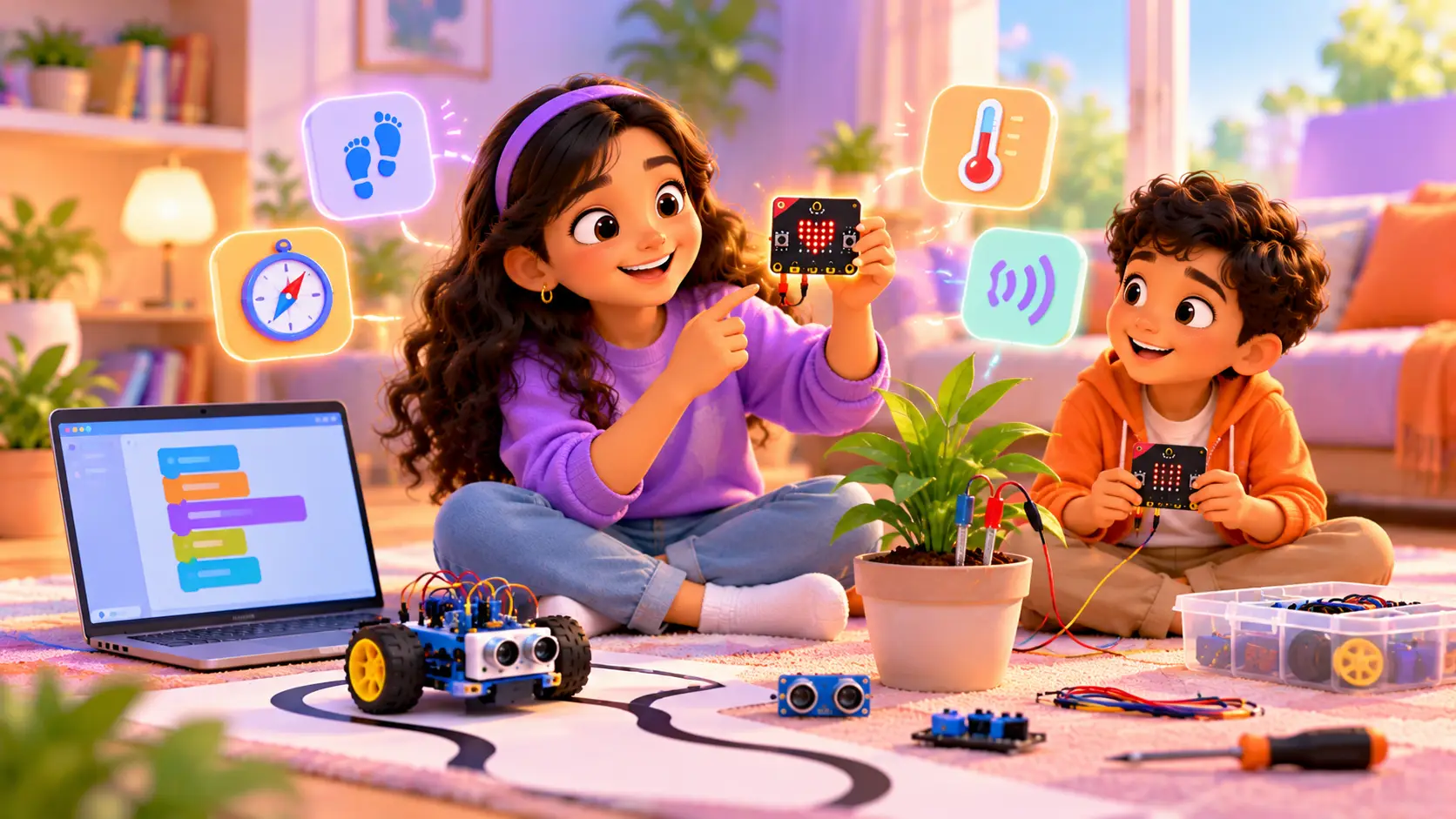
The micro:bit is a pocket-sized computer made for kids. It has an LED screen, buttons, a motion sensor, a compass, a thermometer and even a radio built in, so kids can build amazing things without any wiring.
Here are 15 fun micro:bit projects to build at home, from five-minute starters to a real robot car. Each one includes code you can type into Microsoft MakeCode.
What you need to start
- a micro:bit board and a USB cable
- a laptop or desktop with internet
- the free MakeCode editor at makecode.microbit.org
How it works: build your code, test it in the on-screen simulator, then download it to the micro:bit. Each project below shows the MakeCode Python version. Kids who prefer blocks can build the same thing with blocks, or paste the code into the Python tab and switch back to blocks to see it.
Which micro:bit should you buy?
There are two versions. The newer micro:bit V2 has a few extra features the older V1 does not:
| micro:bit V1 | micro:bit V2 | |
|---|---|---|
| Built-in speaker | No | Yes |
| Built-in microphone | No | Yes, for sound-reactive projects |
| Touch-sensitive logo | No | Yes |
| Speed and memory | Standard | Faster, with more memory |
Buy the V2 if you can. Every project in this guide works on it, and the speaker and microphone open up many more ideas, like a clap switch or a music player. Projects that play sound on a V1 need headphones or a small speaker clipped to the pins. Learn more on the micro:bit Educational Foundation website.
Starter projects (board only)
1. Scrolling name badge
The classic first micro:bit program: one line of code, and your kid’s name scrolls across the LED screen.
basic.show_string("ANANYA")Your name scrolls across the LEDs. Pin it to your shirt with a battery pack. Teaches: your first program · Time: 5 minutes
2. Beating heart
A big heart and a small heart take turns on the screen, so it looks like it is beating. Kids learn that a loop repeats forever.
def on_forever():
    basic.show_icon(IconNames.HEART)
    basic.pause(500)
    basic.show_icon(IconNames.SMALL_HEART)
    basic.pause(500)
basic.forever(on_forever)
Teaches: loops and timing · Time: 10 minutes Make it yours: make it beat faster or slower.
3. Shake dice
Shake the micro:bit and it shows a random number from 1 to 6. Perfect for board games when the real dice goes missing.
def on_gesture_shake():
    basic.show_number(randint(1, 6))
input.on_gesture(Gesture.SHAKE, on_gesture_shake)
Teaches: events, the motion sensor and random numbers · Time: 10 minutes
4. Rock, paper, scissors
def on_gesture_shake():
    hand = randint(1, 3)
    if hand == 1:
        basic.show_icon(IconNames.SMALL_SQUARE)  # rock
    elif hand == 2:
        basic.show_icon(IconNames.SQUARE)        # paper
    else:
        basic.show_icon(IconNames.SCISSORS)      # scissors
input.on_gesture(Gesture.SHAKE, on_gesture_shake)
Two friends shake their boards at the same time. Teaches: if, elif, else · Time: 15 minutes
5. Step counter
steps = 0

def on_gesture_shake():
    global steps
    steps += 1
    basic.show_number(steps)
input.on_gesture(Gesture.SHAKE, on_gesture_shake)
Strap it to your shoe or keep it in your pocket and go for a walk. Teaches: variables · Time: 15 minutes
6. Thermometer
def on_button_pressed_a():
    basic.show_number(input.temperature())
input.on_button_pressed(Button.A, on_button_pressed_a)
Press A to see the temperature in °C. Try it near a window and in a cool room. Teaches: reading a sensor · Time: 10 minutes
7. Night light
def on_forever():
    if input.light_level() < 50:
        basic.show_icon(IconNames.HEART)
    else:
        basic.clear_screen()
basic.forever(on_forever)
The LEDs light up when the room gets dark. Teaches: the light sensor and decisions · Time: 15 minutes
8. Compass
def on_forever():
    heading = input.compass_heading()
    if heading < 45 or heading > 315:
        basic.show_string("N")
    elif heading < 135:
        basic.show_string("E")
    elif heading < 225:
        basic.show_string("S")
    else:
        basic.show_string("W")
basic.forever(on_forever)
The first time, the micro:bit asks you to tilt it to fill the screen. That calibrates the compass. Teaches: angles and conditions · Time: 20 minutes
9. Reaction-time game
start = 0

def on_button_pressed_a():
    global start
    basic.clear_screen()
    basic.pause(randint(1000, 4000))
    basic.show_icon(IconNames.HAPPY)
    start = input.running_time()

def on_button_pressed_b():
    basic.show_number(input.running_time() - start)

input.on_button_pressed(Button.A, on_button_pressed_a)
input.on_button_pressed(Button.B, on_button_pressed_b)
Press A, wait for the smiley, then press B as fast as you can. The number is your reaction time in milliseconds. Teaches: timers and events · Time: 20 minutes
10. Magic 8-ball
answers = ["YES", "NO", "MAYBE", "ASK AGAIN"]

def on_gesture_shake():
    basic.show_string(answers[randint(0, 3)])
input.on_gesture(Gesture.SHAKE, on_gesture_shake)
Ask a question, shake, and get an answer. Teaches: lists · Time: 15 minutes
Radio projects (two micro:bits)
11. Secret messages
Put the same code on both boards. Press A on one, and the other shows the message.
radio.set_group(7)

def on_button_pressed_a():
    radio.send_string("HI")
input.on_button_pressed(Button.A, on_button_pressed_a)

def on_received_string(receivedString):
    basic.show_string(receivedString)
radio.on_received_string(on_received_string)
Teaches: wireless communication · Time: 20 minutes Make it yours: pick your own group number so only your friend can read your messages.
12. Remote doorbell
Press a button on one board, and the other plays a tune. Use radio.send_number(1) on the button, and music.play_tone(262, 500) when a number is received. Plug headphones or a small speaker into the second board (the micro:bit V2 has a speaker built in).
Teaches: sending and receiving signals · Time: 20 minutes
Projects with a few extra parts
13. Plant thirst meter
Push two long nails into a plant pot and connect them to pin 0 and GND with crocodile clips. Wet soil conducts more electricity than dry soil.
def on_forever():
    moisture = pins.analog_read_pin(AnalogPin.P0)
    if moisture < 300:
        basic.show_icon(IconNames.SAD)
    else:
        basic.show_icon(IconNames.HAPPY)
basic.forever(on_forever)
Teaches: analogue sensors · Time: 30 minutes The right number depends on your soil, so test dry and wet soil first.
14. Burglar alarm
When the box lid opens and light comes in, the alarm sounds.
def on_forever():
    if input.light_level() > 100:
        basic.show_icon(IconNames.NO)
        music.play_tone(880, 200)
basic.forever(on_forever)
Put the micro:bit inside a box with a battery pack and close the lid. Teaches: using a sensor as a trigger · Time: 20 minutes
15. Line-following robot car
The big one. With a robot car kit (motors, wheels and line sensors), the micro:bit reads the black line and steers to follow it. The exact code depends on the kit, which is why this is the first robot kids build in our course. Teaches: sensors, motors and real robotics · Time: a few sessions
Want to build the robot car? Our micro:bit kit includes the add-ons for the line-following car and other projects. We ship it to your home. Ask about the micro:bit kit on WhatsApp.
Taking projects off the desk
The micro:bit becomes even more fun when it leaves the laptop:
- Add a battery pack. A small holder with two AA batteries plugs into the board, so projects work anywhere. Download the code first, then unplug the USB cable.
- Make it wearable. Attach the board to a wristband or lanyard for the name badge, step counter or reaction game.
- Build a case. A small cardboard box with a window for the LEDs protects the board and makes projects look finished.
- Play outside. The compass, step counter and thermometer are all more interesting in the garden or on a walk.
Always remove the batteries when you have finished, and keep the board dry.
When a project does not work
| Problem | Usual fix |
|---|---|
| Nothing happens after downloading | Check the board is connected, and download again |
| The code works in the simulator but not on the board | Make sure the latest file was copied to the micro:bit |
| The compass gives strange directions | Calibrate again, away from metal and magnets |
| The light sensor never triggers | Try a darker or brighter room, or change the number in the code |
| The radio message never arrives | Check both boards use the same group number |
Fixing problems like these is where real learning happens. Encourage your kid to change one thing at a time and test again.
Turning projects into school work
Many of these projects make great school presentations or exhibition entries. A step counter can become a fitness study, a thermometer can track temperatures for a week, and the plant thirst meter fits perfectly in a science project about soil and water. For bigger ideas, see 25 robotics project ideas for school science exhibitions.
A simple weekend plan
Not sure where to begin? Try this:
- Saturday morning: projects 1 to 3 (name badge, beating heart, shake dice). Quick wins that build confidence.
- Saturday afternoon: projects 5 and 6 (step counter and thermometer), then take them outside.
- Sunday: the reaction-time game and the magic 8-ball, then challenge the whole family.
By Sunday evening, your kid will have built seven working programs and learned events, loops, variables, sensors and random numbers.
Tips for parents
- Start with the simulator if the board has not arrived yet.
- Celebrate small wins. A scrolling name is a real program.
- Ask “what if?” What if the heart beat faster? What if the dice went up to 12?
- Let them teach you. Explaining their code helps them remember it.
Moving from blocks to Python
Every project above can be built with blocks or Python in MakeCode. When your kid is comfortable with blocks, switching the same project to Python is a gentle first step into real code. Read Scratch vs Python and Micro:bit vs Arduino vs Raspberry Pi.
Build real robots with a trainer
In our Micro:bit Robotics course (ages 7 to 11), kids build a line-following robot car, a step counter, a reaction-time game and a burglar alarm, live and 1-on-1 with a trainer. Older kids can move on to 10 fun Arduino projects.
 Chat on WhatsApp